How to Find Saved Posts on Instagram (2026)
Learn how to find saved posts on Instagram in seconds. Discover where Instagram saves live, how collections work, and a smarter way to organize them.
How to Find Saved Posts on Instagram (And Actually Use Them)
This article shows you exactly where saved posts live on Instagram, how collections work, and why most people never revisit the content they save — plus a smarter alternative.
On This Page
- Where to find your saved posts on instagram
- How instagram saved posts location works across devices
- How to use collections to organize saved content
- Why you never go back to your instagram saved content
- A better way to save and actually revisit content
- Key Takeaways
- FAQ
Where to Find Your Saved Posts on Instagram
If you've been tapping the bookmark icon on posts and wondering where they actually go, you're not alone. Finding your saved posts on Instagram isn't immediately obvious — the feature is buried two taps deep in the app's navigation, which is part of why so many people forget it exists entirely.
Here's the exact path to locate Instagram saves on your account:
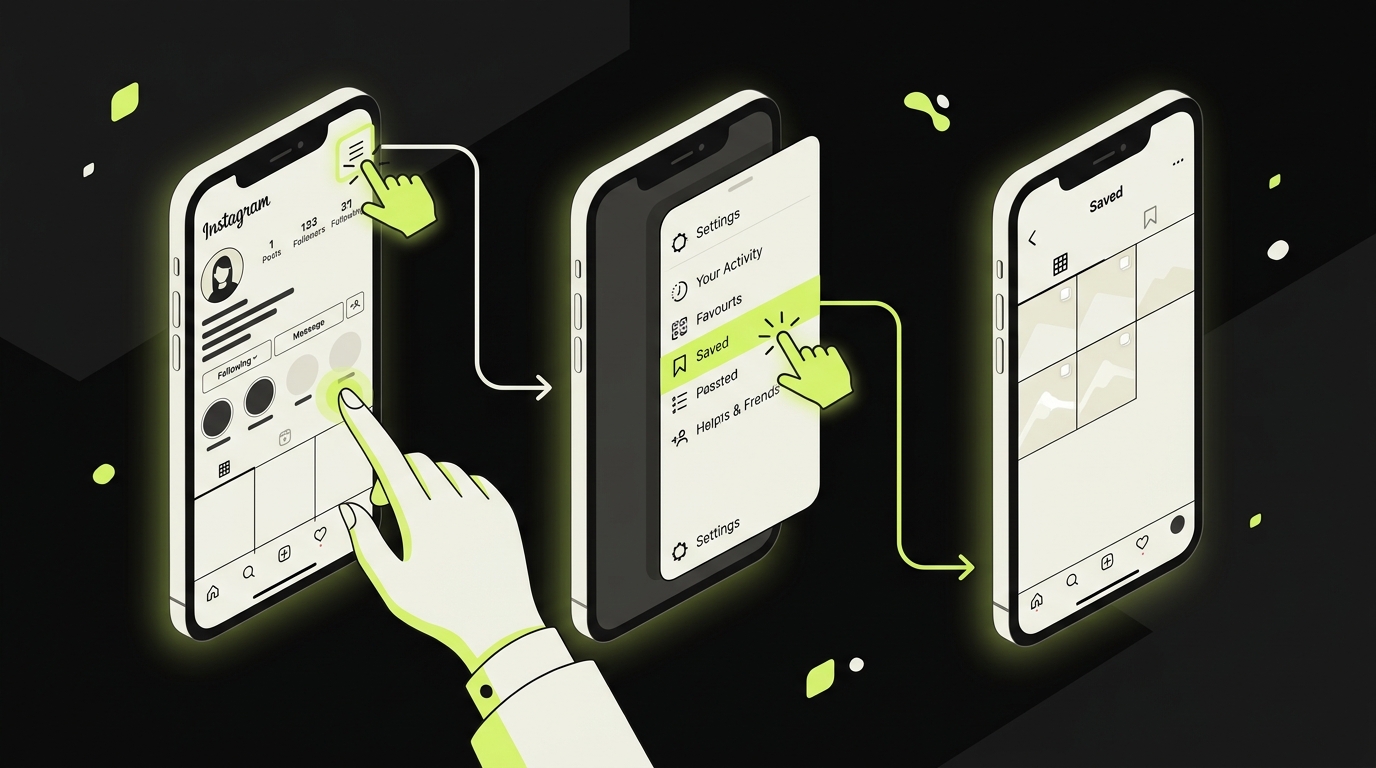
- Open Instagram and tap your profile picture in the bottom-right corner.
- Tap the hamburger menu (three horizontal lines) in the top-right corner of your profile.
- Select "Saved" from the menu that appears.
- You'll land on a grid view of all your bookmarked posts, Reels, and videos — your full Instagram saved content archive.
Instagram changes labels and menu placement over time. If this path differs on your device, check the platform's official Saved posts help page after updating the app.
That's it. No hidden menus, no settings dive. Just two taps from your profile page.
It's worth noting that this section is entirely private. No one else — not even your followers — can see the posts you've bookmarked. Your Instagram collections folder is visible only to you when you're logged in.
How Instagram Saved Posts Location Works Across Devices
One of the most reassuring things about Instagram's save feature is that your bookmarks are stored server-side, not locally on your phone. This means your saved posts are tied to your account, not your device.
If you log into Instagram on a new iPhone, switch to an Android, or access your account via a web browser at instagram.com, you'll find the exact same saved content waiting for you. The Instagram saved posts location is always the same: Profile → Menu → Saved.
On desktop or browser, the path is slightly different:
- Go to your profile by clicking your avatar in the top right
- Click the bookmark icon that appears beneath your bio stats
- Your full archive of bookmarked posts loads immediately
This cross-device consistency is useful if you're the type to browse on your phone but want to revisit saved content on a larger screen. For a deeper look at how the whole system works, check out our guide on guide to organizing saved posts across accounts.
One thing Instagram does not sync: the internal organization of your collections. If you rename or reorder a collection on one device, it may take a moment to reflect across others — a minor quirk worth knowing if you use multiple devices.
How to Use Collections to Organize Saved Content
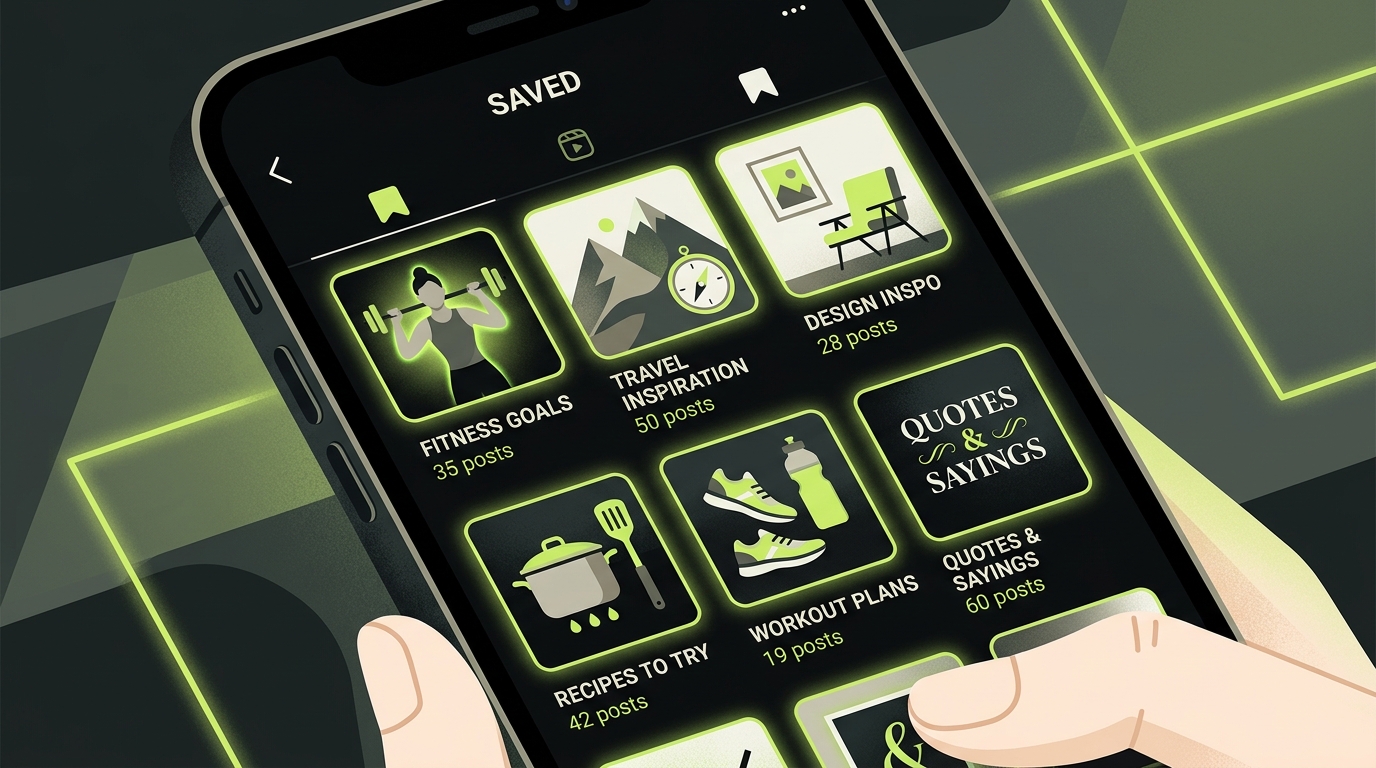
Instagram allows you to group your saves into named collections — essentially folders within the Saved section. This is how you access saved reels, recipe posts, travel inspiration, or workout videos without scrolling through hundreds of unrelated bookmarks.
Creating a New Collection
To create a collection, open the Saved section and tap the "+" icon in the top-right corner. Give it a name — "Recipes," "Design Inspiration," "Watch Later" — and hit Save.
You can then add posts to that collection in two ways:
- From the Saved grid: tap and hold any post, then select "Add to Collection"
- In the moment: when you bookmark a post, Instagram gives you the option to add it directly to an existing collection
The Limits of Instagram Collections
Collections work well enough for light organization, but they have meaningful limitations. There's no way to tag posts with multiple labels, no search function within your saves, no automatic sorting by topic or format, and no reminder system to actually go back and view bookmarked posts.
For a fuller breakdown of what Instagram's native bookmark system can and can't do, our article on guide to organizing Instagram saved posts covers every feature in detail.
If you switch between profiles, the workflow changes: our guide to organizing saved posts across multiple Instagram accounts covers how to keep each account's saves distinct.
Why You Never Go Back to Your Instagram Saved Content
Here's the uncomfortable truth that most "how to find saved posts" articles skip: the real problem isn't finding your saves. It's that you save content compulsively during a scroll session and then never actually return to it.
This behavior has a name in behavioral psychology: the intention-action gap. You intend to read, watch, or use the content later. The save feels like progress. But the friction of returning to it — opening a different section of the app, remembering what you saved, filtering through hundreds of unrelated bookmarks — means most saved content is never seen again.
Saving can feel like progress even when no return date or next action has been chosen. Over time, retrieval becomes harder because each new bookmark competes with an increasingly large, weakly organized library.
Instagram's design doesn't help. The Saved section exists at the edge of the app's ecosystem, deliberately separated from the feed, Stories, and Reels that generate engagement for the platform. There's no notification reminding you to view bookmarked posts. No "you saved this 30 days ago" prompt. No friction in the opposite direction — nothing to interrupt the cycle of saving without reading.
This is why the average Instagram user has dozens, sometimes hundreds, of saved posts they've never revisited. It's not a memory problem. It's an architecture problem.
A Better Way to Save and Actually Revisit Content
If the native Instagram save system keeps failing you, the issue isn't discipline — it's that the tool wasn't designed to help you actually use what you save. It was designed to keep you in the app.
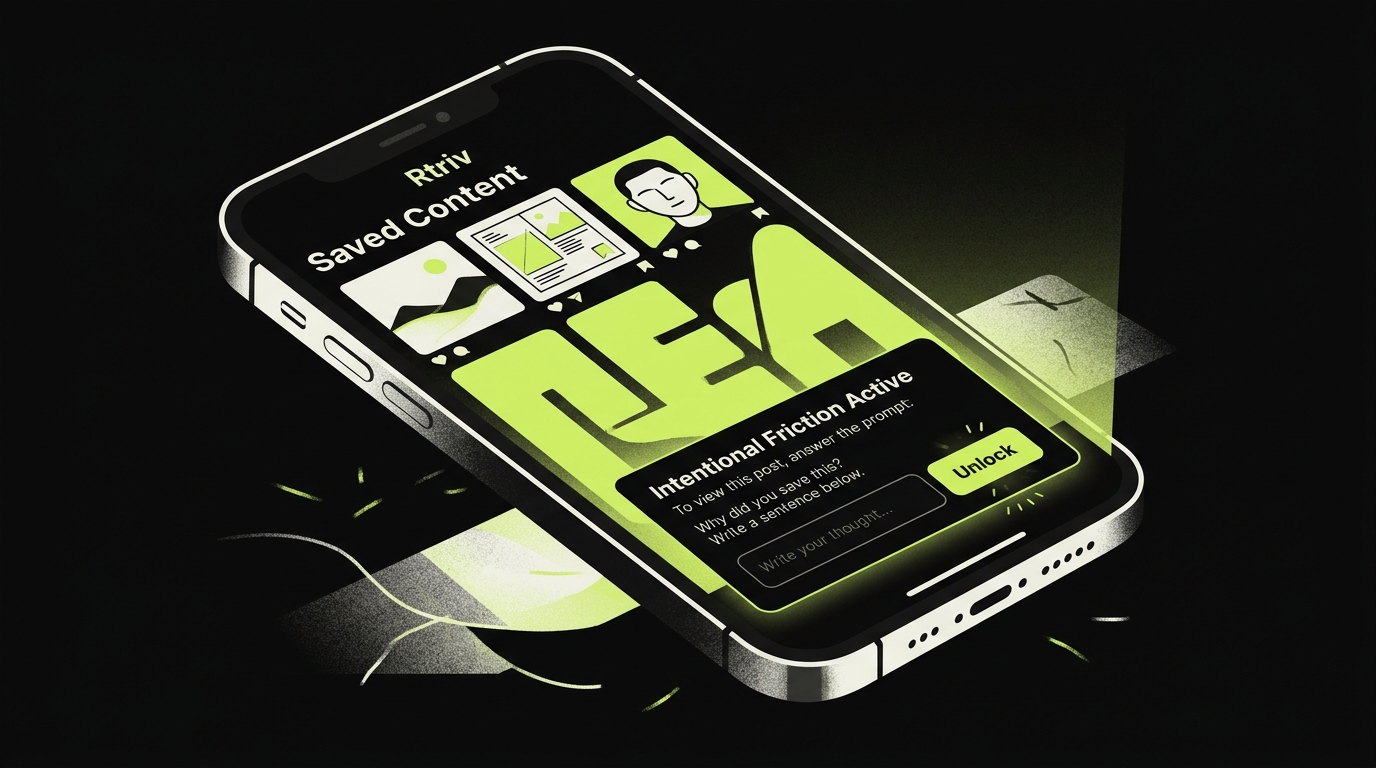
A growing number of iOS users are turning to intentional third-party tools that bring structure and friction to the saving process. Rtriv is one of them. It's an iOS app built specifically around the idea that saving content should come with a moment of pause — not just a reflex tap on a bookmark icon.
On iPhone, compatible apps and actions can be reached from another app through the Share Sheet, as described in Apple's Shortcuts documentation.
With Rtriv, when you share content from Instagram (or TikTok, YouTube, Twitter, or any other platform), the app introduces a small intentional delay before the save completes. That moment of friction forces a micro-decision: Do I actually want to read this? Or am I just saving it to feel like I did something?
That pause is a UX choice, not a guaranteed clinical intervention. Its value is practical: it gives the user a moment to decide whether the item deserves a place in the library before adding another bookmark.
Beyond the save mechanics, Rtriv surfaces your saved content intentionally — reminding you what you've stored, making retrieval easy, and turning a graveyard of bookmarks into an actual reading list you use. For a comprehensive look at how to build a better saving habit across every platform, see our guide on How to save content from social media: the complete guide.
If you've ever saved a post and thought "I'll come back to this" — and then never did — Rtriv was built for exactly that moment.
Related reading :
Key Takeaways
- To find saved posts on Instagram: go to your Profile → tap the three-line menu → select "Saved." The feature is private and syncs across all your devices.
- Instagram collections let you organize your bookmarked posts into named folders, but they lack search, tagging, and reminder features that would make them genuinely useful.
- Most saved Instagram content is never revisited — this is a design issue, not a personal failure. The platform has no mechanism to bring you back to what you saved.
- Intentional saving tools like Rtriv add deliberate friction at the moment of saving, so you engage with content purposefully rather than hoarding it reflexively.
Frequently Asked Questions
About
Équipe RTRIV
We design RTRIV to turn saved content into decisions, projects and moments that are actually lived.