1
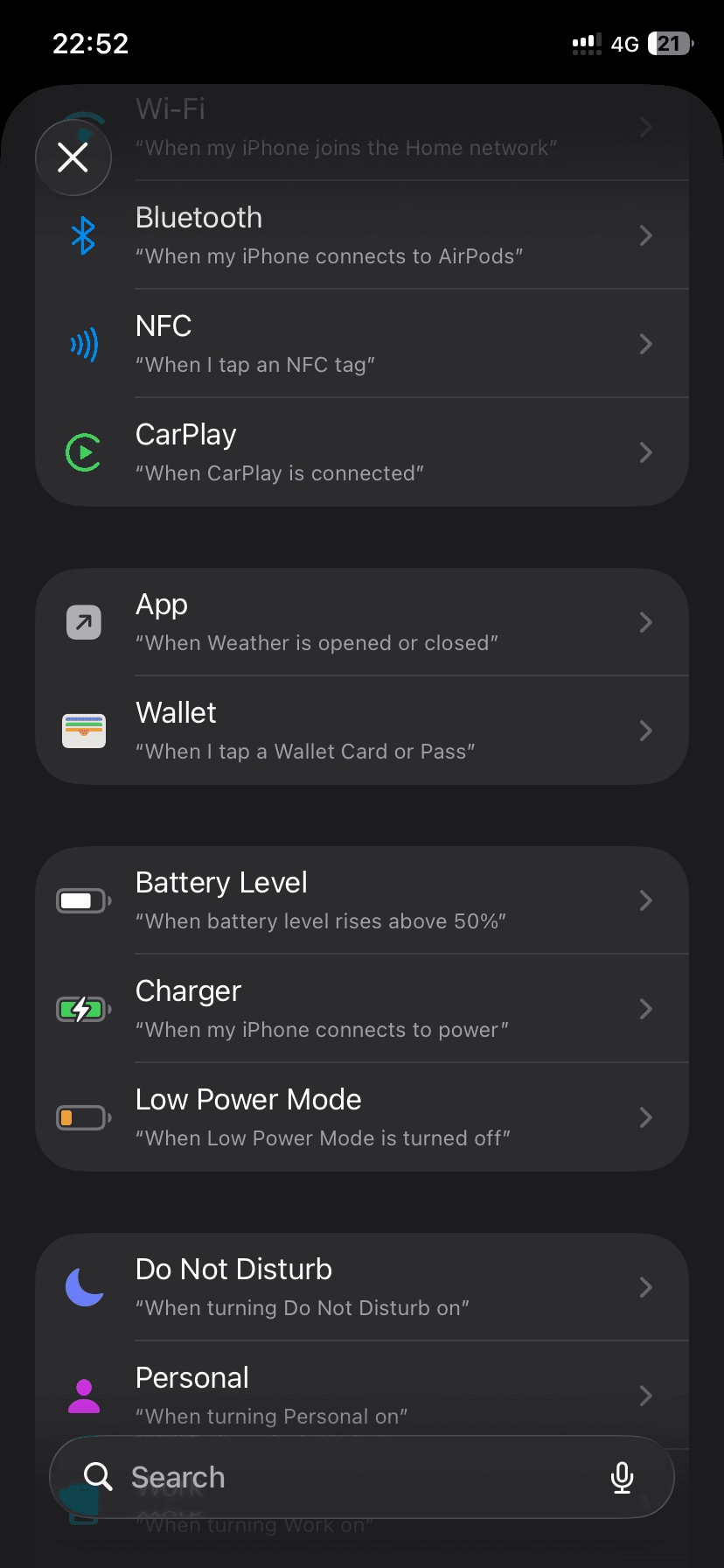
Choose the social app that will trigger the session.
RTRIV prépare la suite…
Tutorial
To have Rtriv activate automatically when you open a social network, you'll create an automation in the iOS Shortcuts app. You need one per network.
Choose the social app that will trigger the session.
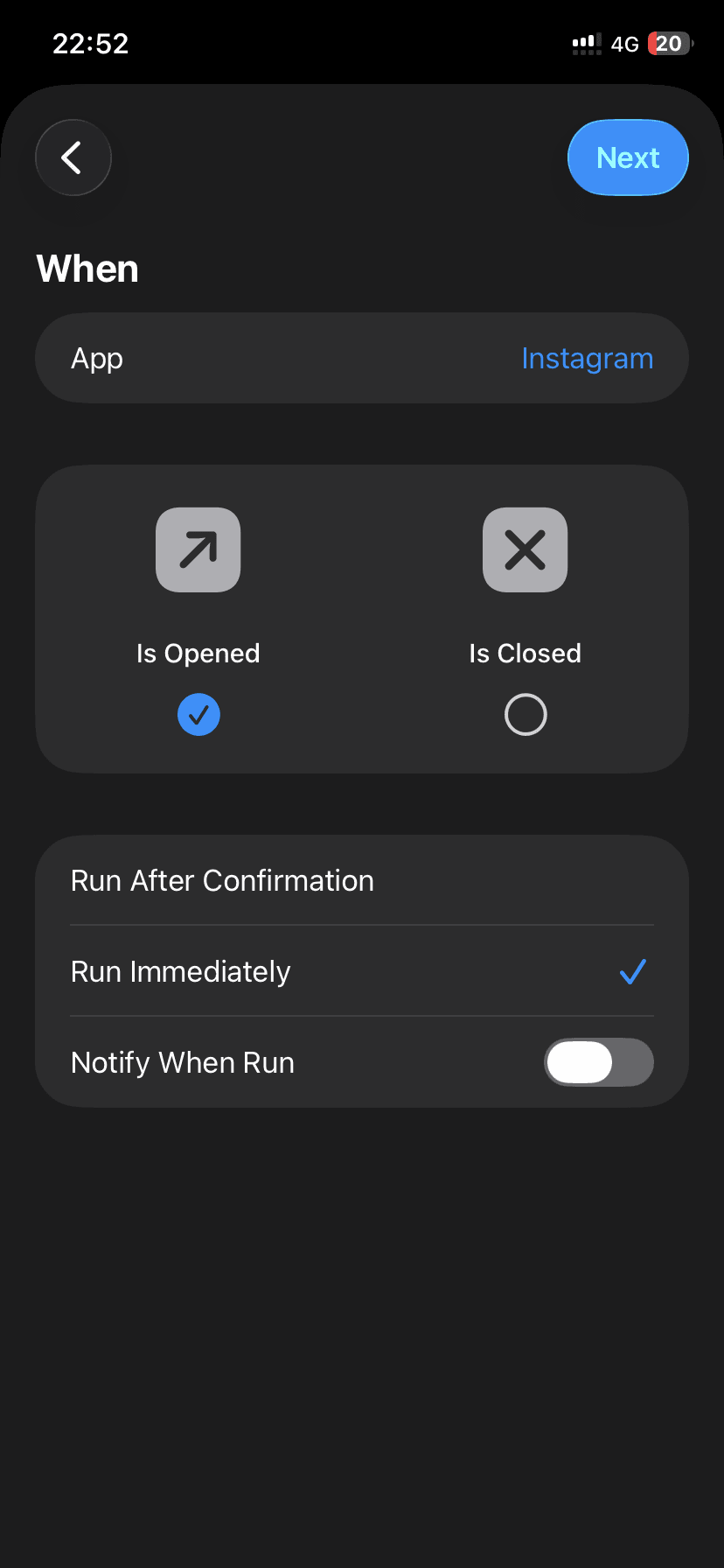
Configure the automation for when the app is opened.
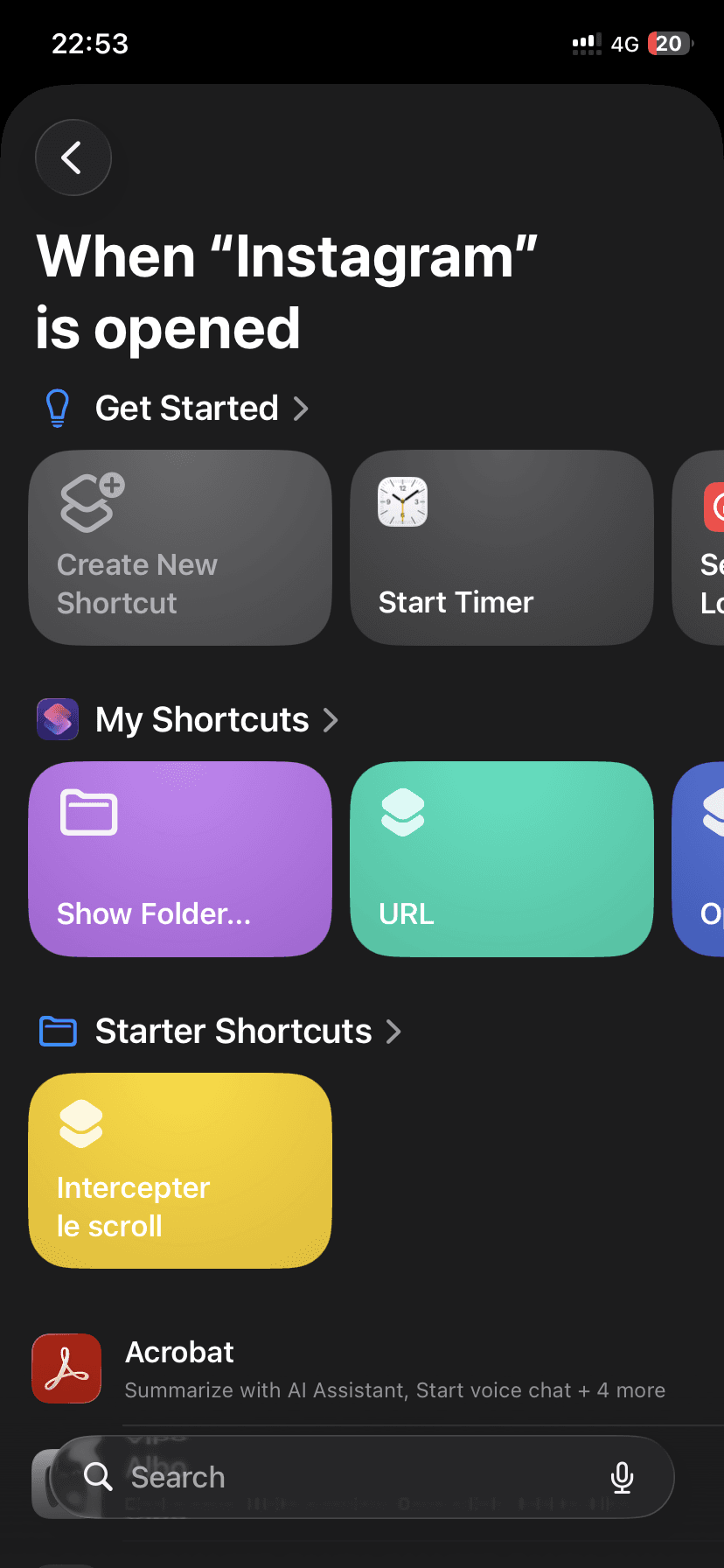
Select Create Shortcut.
Choose RTRIV from the app list.
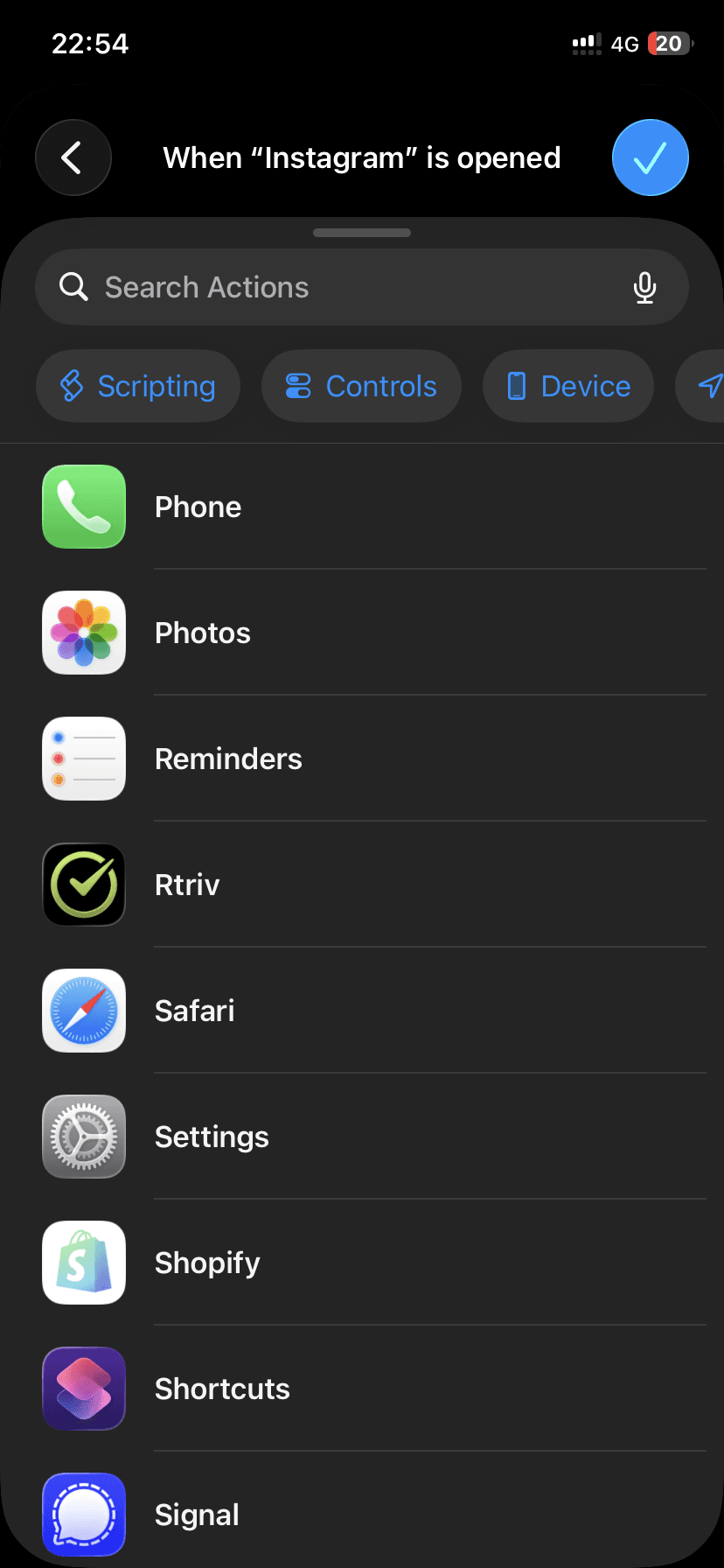
Select the action that starts a session.
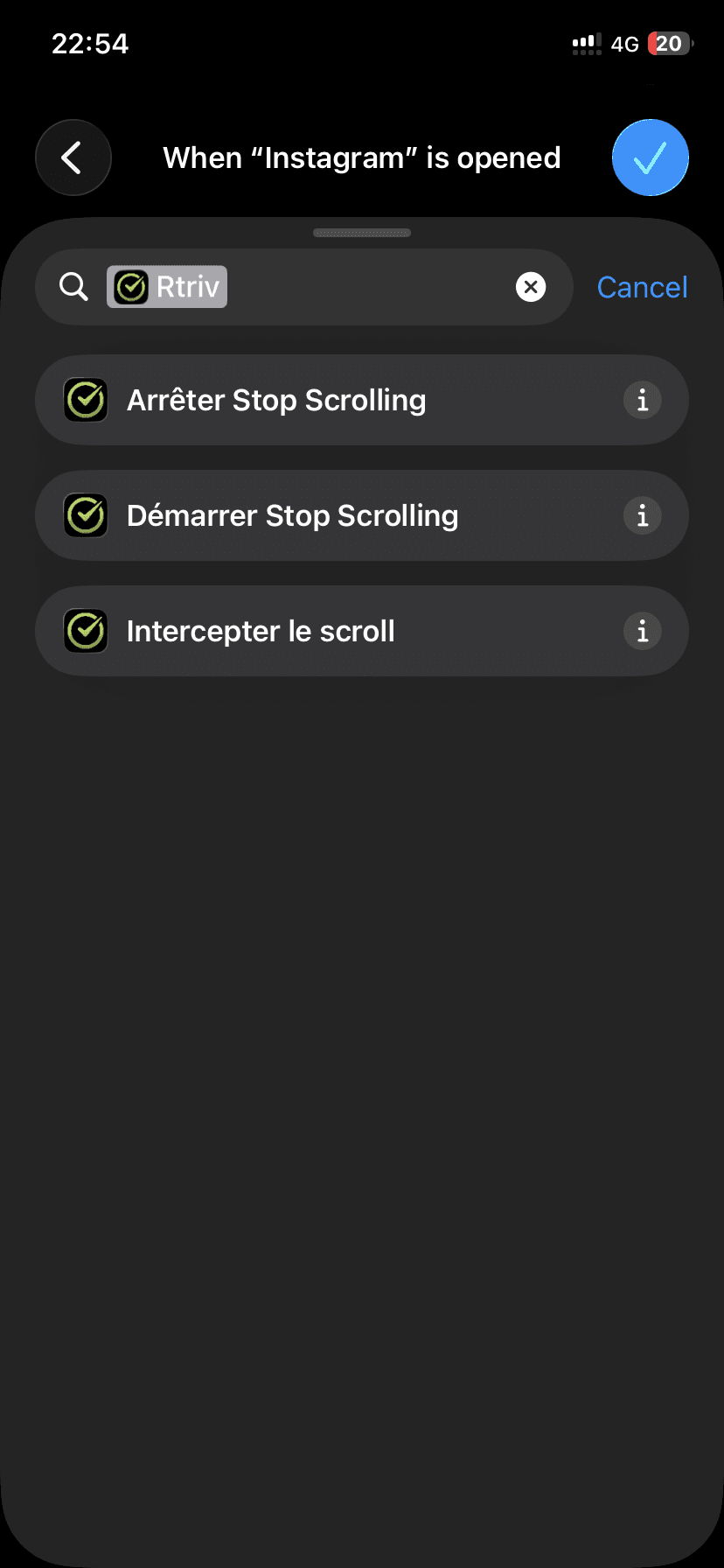
Choose the relevant social network.
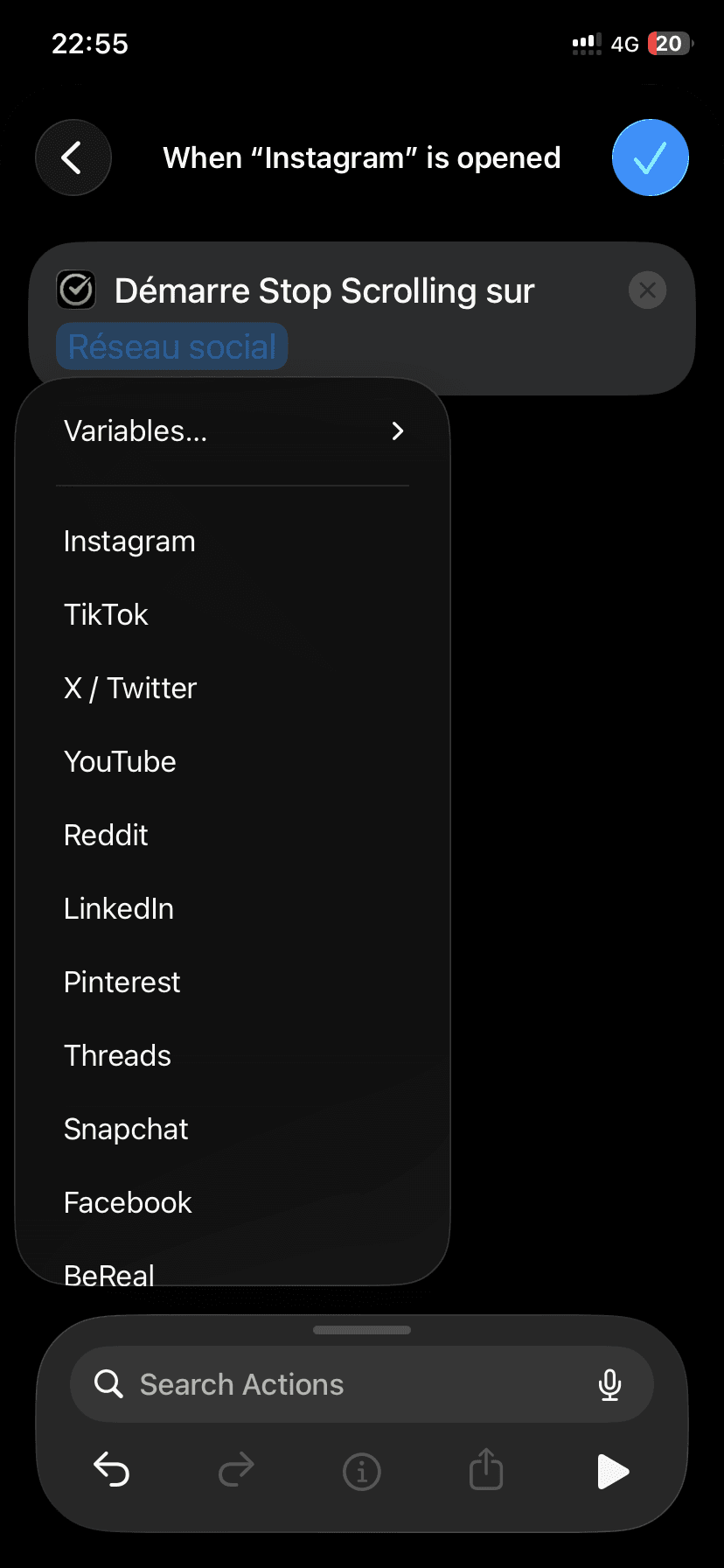
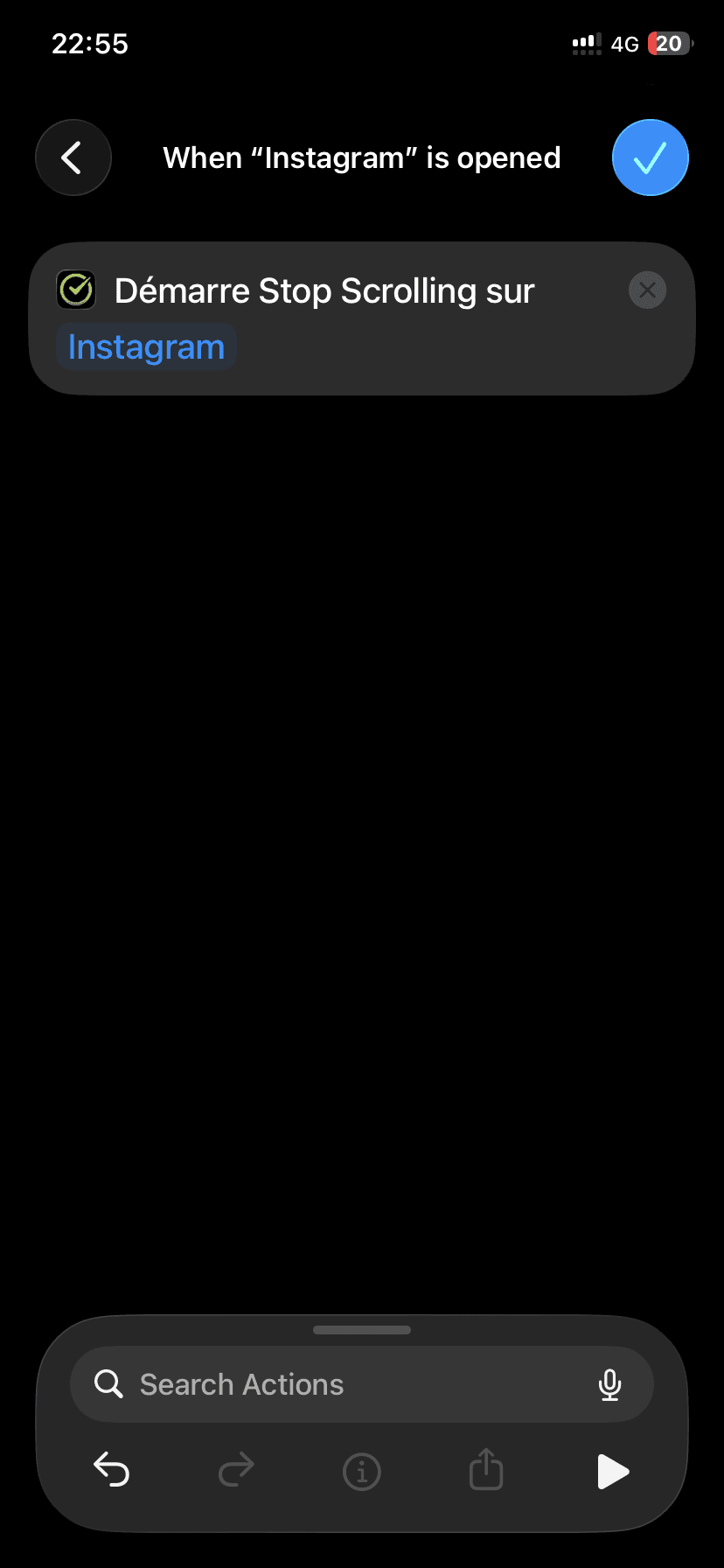
Confirm: automatic start is ready.
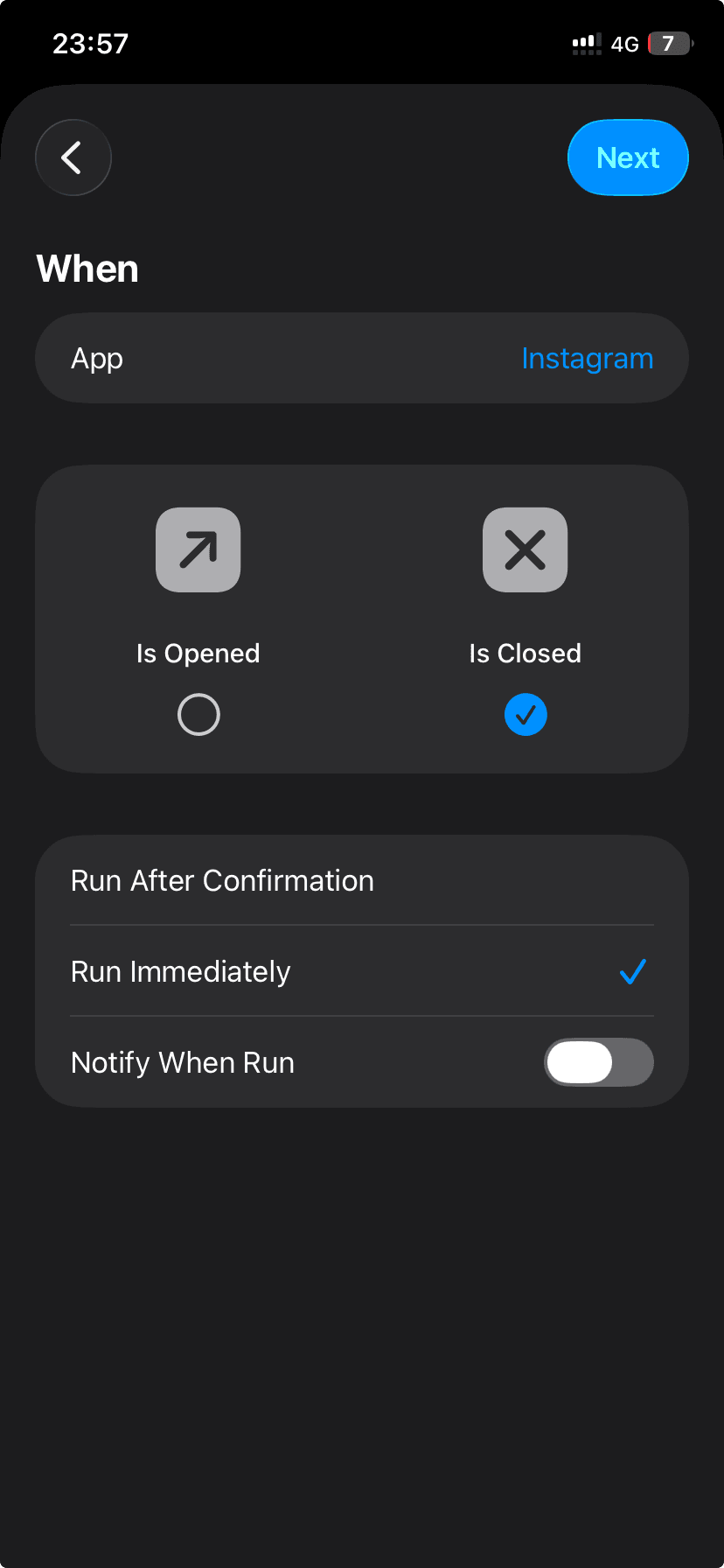
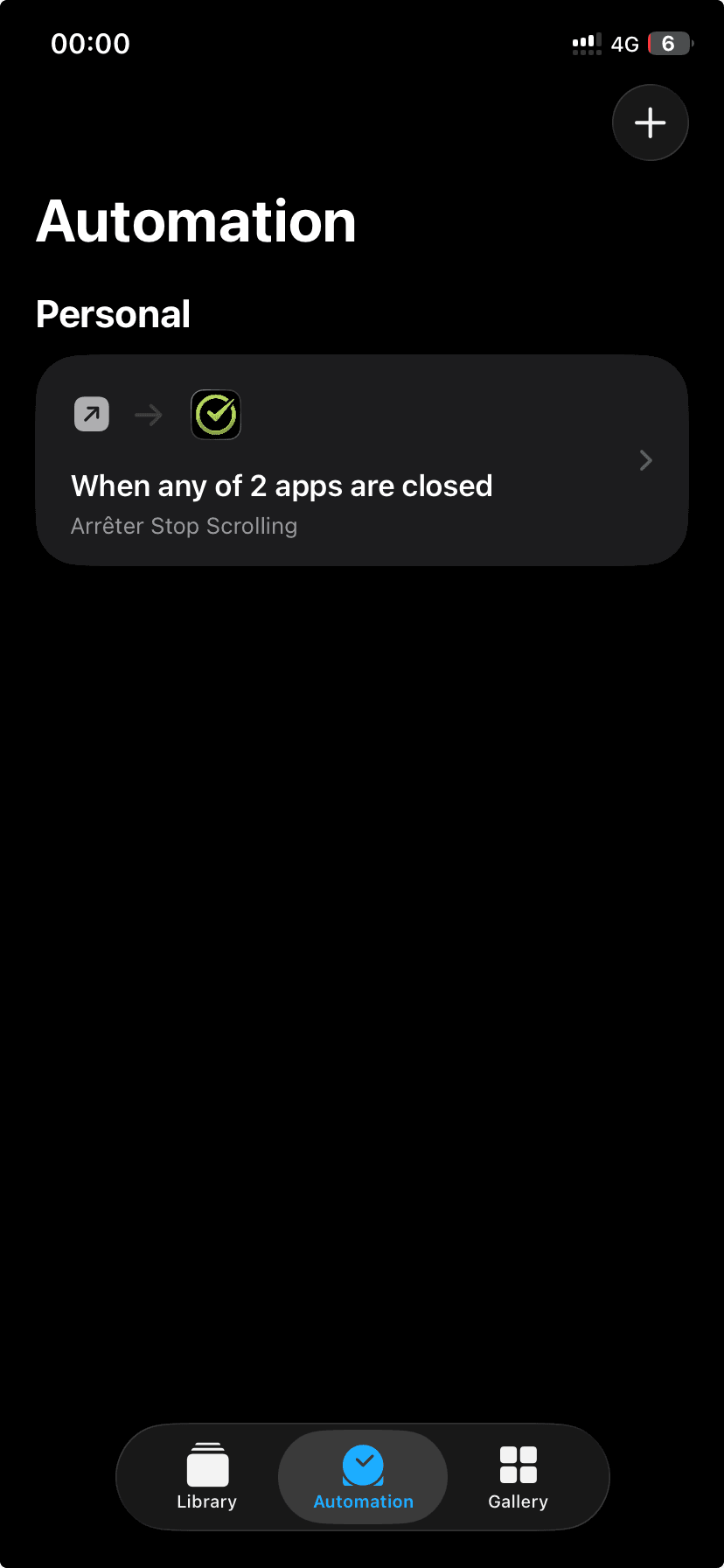
Create a second automation for when the app closes.
Choose Is Closed and keep immediate execution.
Create another shortcut.
Select RTRIV.
Choose the action that stops the scrolling session.
Done: RTRIV now tracks the beginning and end of the session.
✦
Done for this network. To monitor other networks (TikTok, YouTube, X, LinkedIn...), repeat these steps for each one. Whenever you open a monitored app and your friction conditions are active, Rtriv will activate automatically.