Save Instagram Reels to Camera Roll (2026)
Learn how to save Instagram Reels to your camera roll in seconds — plus a smarter way to save short videos without falling back into mindless scrolling.
How to Save Instagram Reels to Your Camera Roll (Without Getting Sucked Back In)
Here's everything you need to know about saving Instagram Reels to your camera roll — including what to do when Instagram won't let you, and a smarter approach that protects your time.
On This Page
- How to save a reel to your camera roll: the native method
- Why Instagram sometimes won't let you download a reel
- The hidden cost of going back to Instagram to find that reel later
- A better way to save Instagram short videos: Rtriv
- How to save content from Instagram without relapsing into a scroll session
- Key Takeaways
- Frequently Asked Questions
How to Save a Reel to Your Camera Roll: The Native Method
Knowing how to save Instagram Reels to your camera roll is one of those things that should be obvious — but Instagram's interface buries the option just enough to cause friction. The good news: when saving is allowed by the creator, the process takes about three seconds.
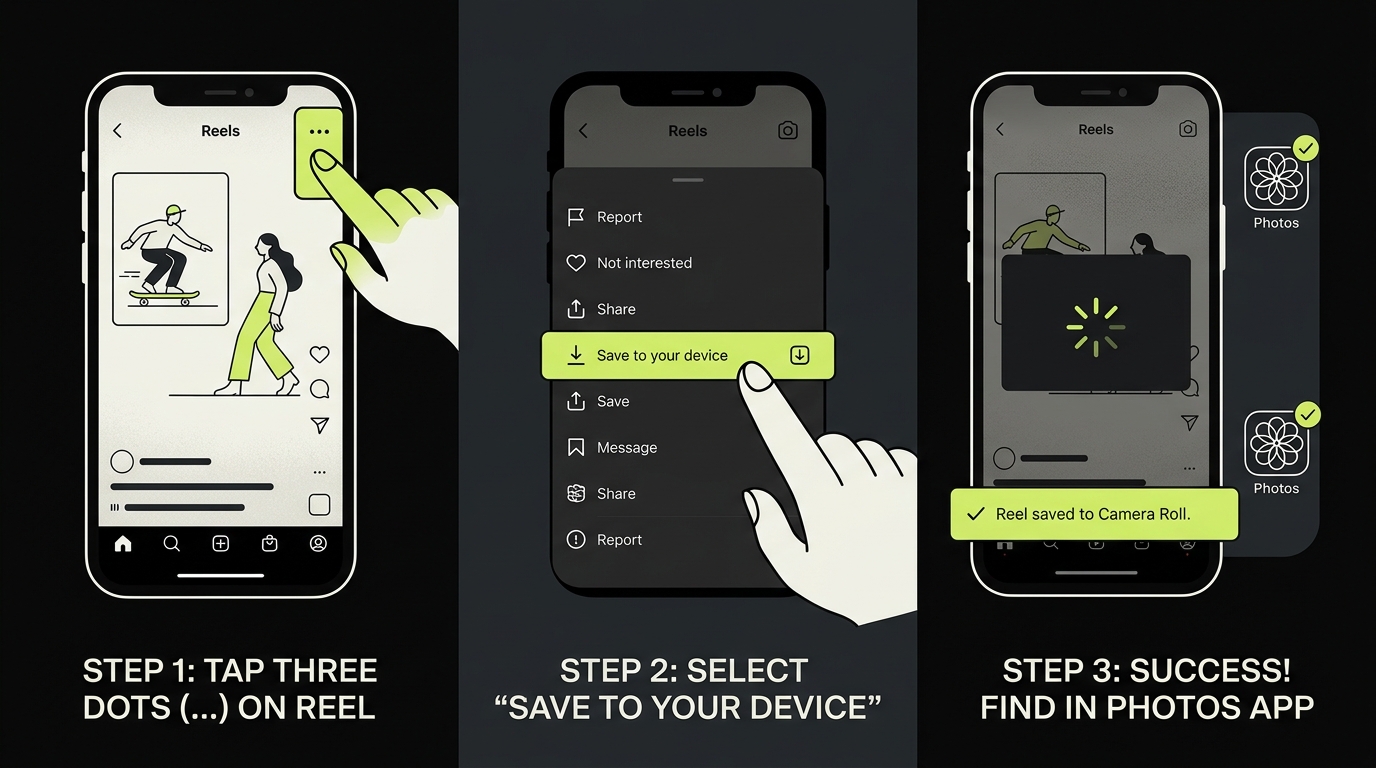
Here's the exact step-by-step on iPhone:
Step 1 — Find the Reel you want to keep
Scroll to the Reel in your feed, or open it from someone's profile. Make sure the video is fully visible on screen.
Step 2 — Tap the three-dot menu
In the bottom-right corner of the Reel (or top-right when viewing from a profile), tap the ⋯ icon. A bottom sheet will slide up with several options.
Step 3 — Select "Save to device"
Tap Save to device. Instagram will download the Reel directly to your iPhone's camera roll — no third-party app needed.
That's it. The video will appear in your Photos app, in the Recents album, within a few seconds.
What if you want to save a reel from your Saved collection?
Open your profile → tap the bookmark icon → navigate to the collection where you bookmarked it → open the Reel → tap ⋯ → Save to device. Same process, just one extra step.
Why Instagram Sometimes Won't Let You Download a Reel
You've followed every step above and the "Save to device" option simply isn't there. This isn't a bug — it's a deliberate design choice.
Instagram gives every creator the ability to toggle off downloads for their content. When that setting is off, you cannot save the Reel to your camera roll through the native app, period.
Why do creators disable downloads?
Most do it to protect their original content from being reposted without credit. Others disable it on brand deals where usage rights are restricted. It's a legitimate choice, even if it's frustrating when you find a recipe, workout, or tutorial you want to reference offline.
Can you use a third-party downloader?
Technically, yes — dozens of Instagram Reel download tools exist online. But most violate Instagram's Terms of Service, and some are outright malware traps. Instagram also actively works to block these services. We don't recommend them.
The safer alternative: bookmark the Reel inside Instagram, or save the link using a dedicated content-saving app. More on that below.
The Hidden Cost of Going Back to Instagram to Find That Reel Later
Here's something almost no article about Instagram Reels offline access talks about: saving a Reel is only half the problem. The other half is what happens when you go back to find it.
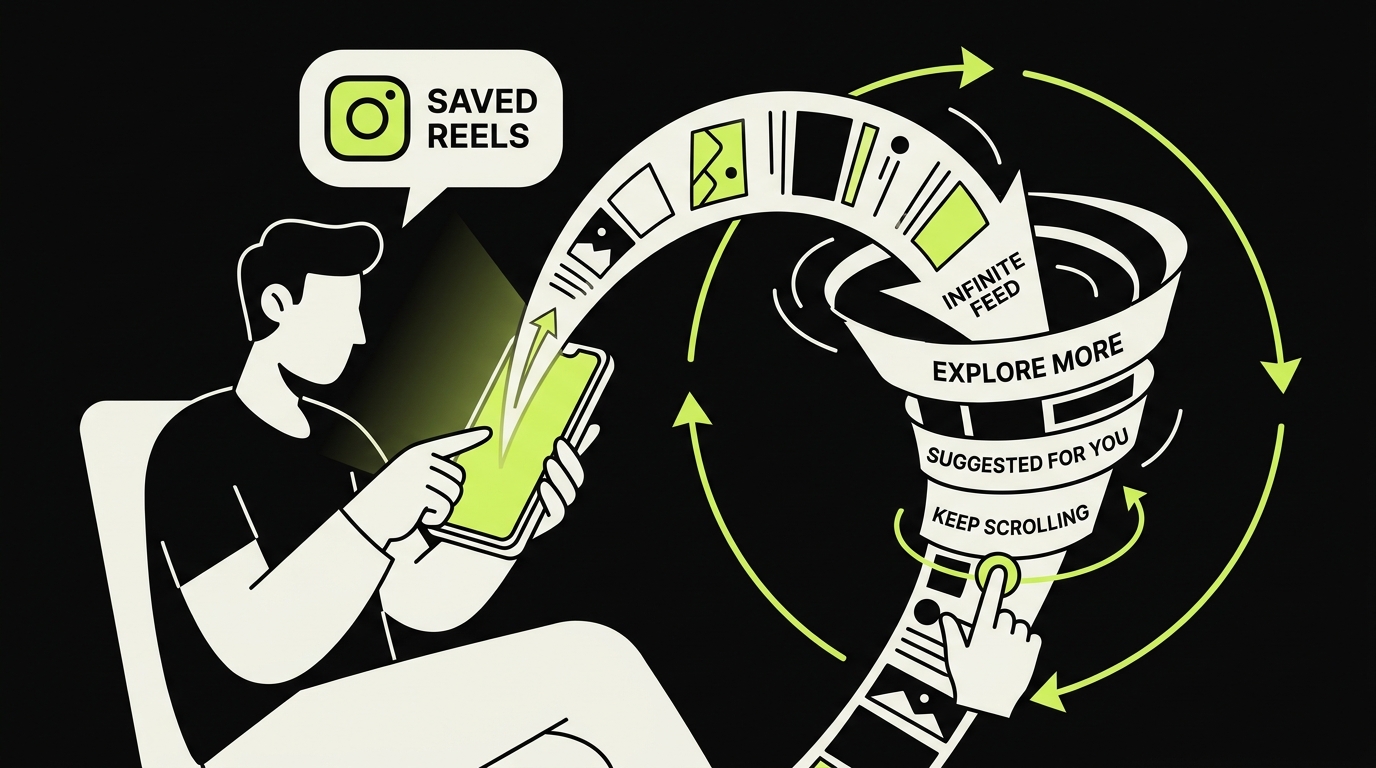
You open Instagram to check that saved workout video. Thirty minutes later, you're watching dog compilations and wondering where the afternoon went.
Returning to Instagram for a saved Reel also returns you to its recommendations and notifications. If that regularly turns a retrieval task into another browsing session, separate “finding” from “scrolling” by using a dedicated collection or external library.
Instagram's infinite feed, autoplay Reels, and notification badges aren't accidents. They are engineered to maximize the time you spend inside the app.
Saving a Reel to your camera roll removes the video from that loop — which is exactly why it matters. But if the Reel can't be downloaded, or if you find yourself regularly diving back into the app "just to find that one video," you need a different strategy.
A Better Way to Save Instagram Short Videos: Rtriv
This is where Rtriv provides a different workflow.
Rtriv is an iOS app built around one core idea: saving content should be intentional, not impulsive. When you find a Reel, a TikTok, a tweet, or a YouTube video you want to keep, you share the link to Rtriv instead of letting it get buried in Instagram's bookmarks or your camera roll.
Rtriv centralizes supported social-media content and web links in a searchable library and collections. Depending on the source, it can extract a title, summary, transcript, ingredients or steps. Configurable attention controls can separately add friction or blocking rules before selected apps open.
What makes Rtriv different from Instagram's native save feature?
- Cross-platform: Save Instagram Reels, YouTube Shorts, TikToks, and more — all in one place.
- Organized: Your saved content is structured and retrievable, not buried under hundreds of bookmarks.
- Friction by design: The saving process is slightly intentional, which means you save less junk and actually revisit what matters.
- No re-entry required: You never have to open Instagram again just to find something you saved.
If you want to go deeper on saving across platforms, the How to save content from social media: the complete guide covers everything from native tools to smarter workflows.
How to Save Content From Instagram Without Relapsing Into a Scroll Session
The real challenge isn't technical — it's behavioral. Most people don't struggle to find the save button. They struggle with what happens around the save.
According to research from the Journal of Behavioral Addictions, problematic social media use is strongly associated with impulsive behavior patterns — including opening apps "just for a second" and losing track of time. The save action itself can become a trigger: you open Instagram to save a Reel, your thumb starts scrolling automatically, and 40 minutes evaporate.
A few strategies that actually help:
Use the share sheet, not the app
Instead of opening Instagram to browse your saved content, make it a rule: only open Instagram with a specific purpose. When you find something worth saving in the feed, immediately use the share icon → Rtriv (or copy link). Don't linger.
Treat your saved content like email
Check your Rtriv library on a schedule — say, once a day in the evening — rather than randomly throughout the day. This batches your content consumption and removes the need to re-enter Instagram impulsively.
Save less, revisit more
A useful review rule is simple: delete saves that no longer have a next action, and place the rest in a small number of purpose-based collections.
For a detailed look at how saving mechanics work across platforms, check out How to save reels on Instagram — it covers both the technical and behavioral sides.
Related reading :
Key Takeaways
- To save an Instagram Reel to your camera roll: tap ⋯ → "Save to device." This only works if the creator has enabled downloads.
- If the download option is missing, the creator has restricted saving — third-party downloaders are risky and against Instagram's Terms of Service.
- Going back into Instagram to find saved content is a major scroll-relapse trigger — by design.
- Rtriv can organize supported Reel links and extracted information, but it does not promise a permanent offline copy of the underlying video.
- Saving intentionally — not impulsively — is a skill. Apps and habits that introduce small moments of pause can meaningfully reduce mindless screen time.
Frequently Asked Questions
About
Équipe RTRIV
We design RTRIV to turn saved content into decisions, projects and moments that are actually lived.